welcome to

Magicore academy

Here you will find how to videos, FAQs, and tips to help you get the most out of Academy 

QUICK START GUIDE

Getting Started in Academy

If you're brand new to MagiCore Academy, here are a few quick steps to getting started.

Click the images to enlarge the examples.

Adding Your Students

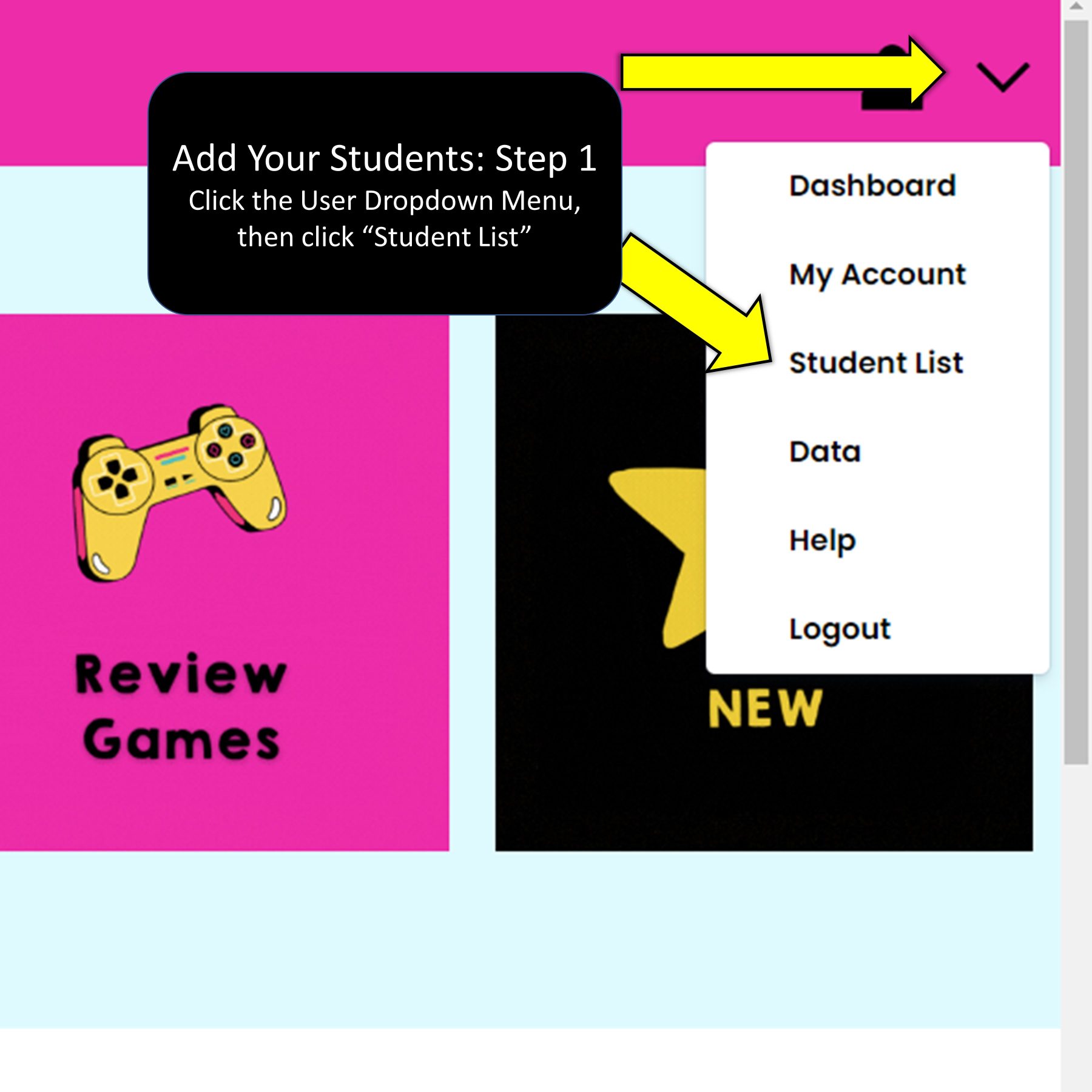
  1. Click on Students in the left sidebar menu.
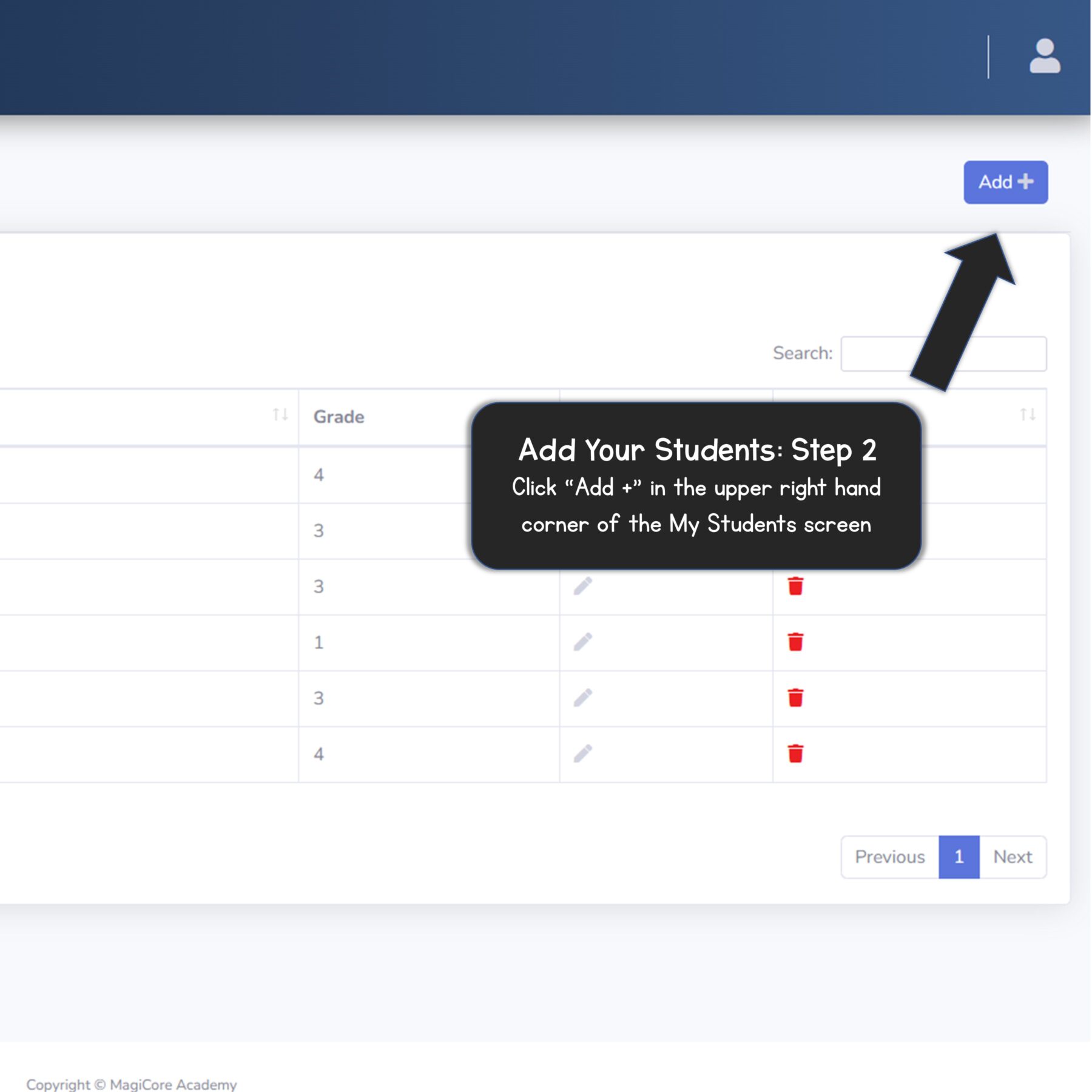
  2. Click the Add Student button on the right side of the screen.
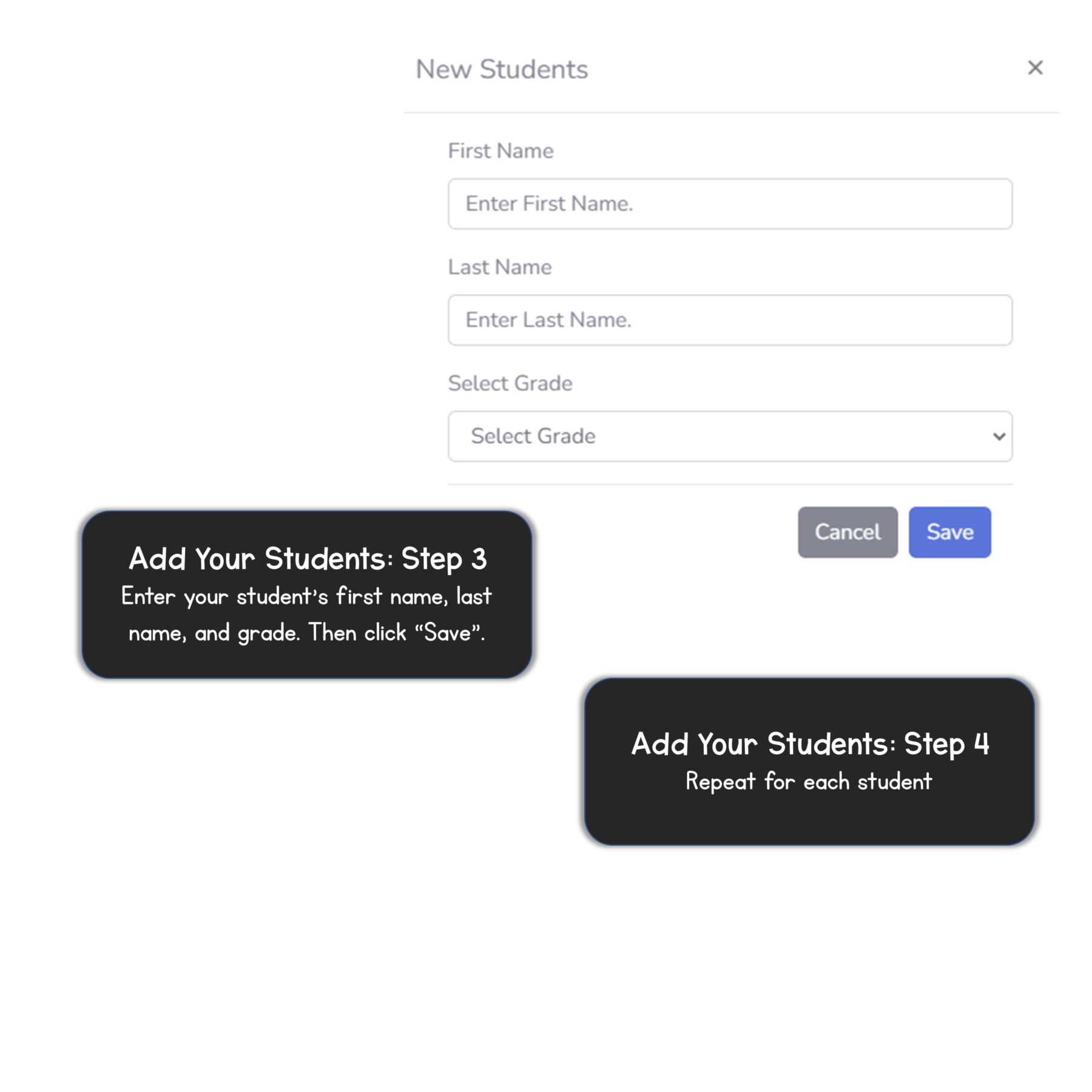
  3. Enter your student’s name and grade. A username and password will generate automatically.
  4. Click Save.

Student Login Info

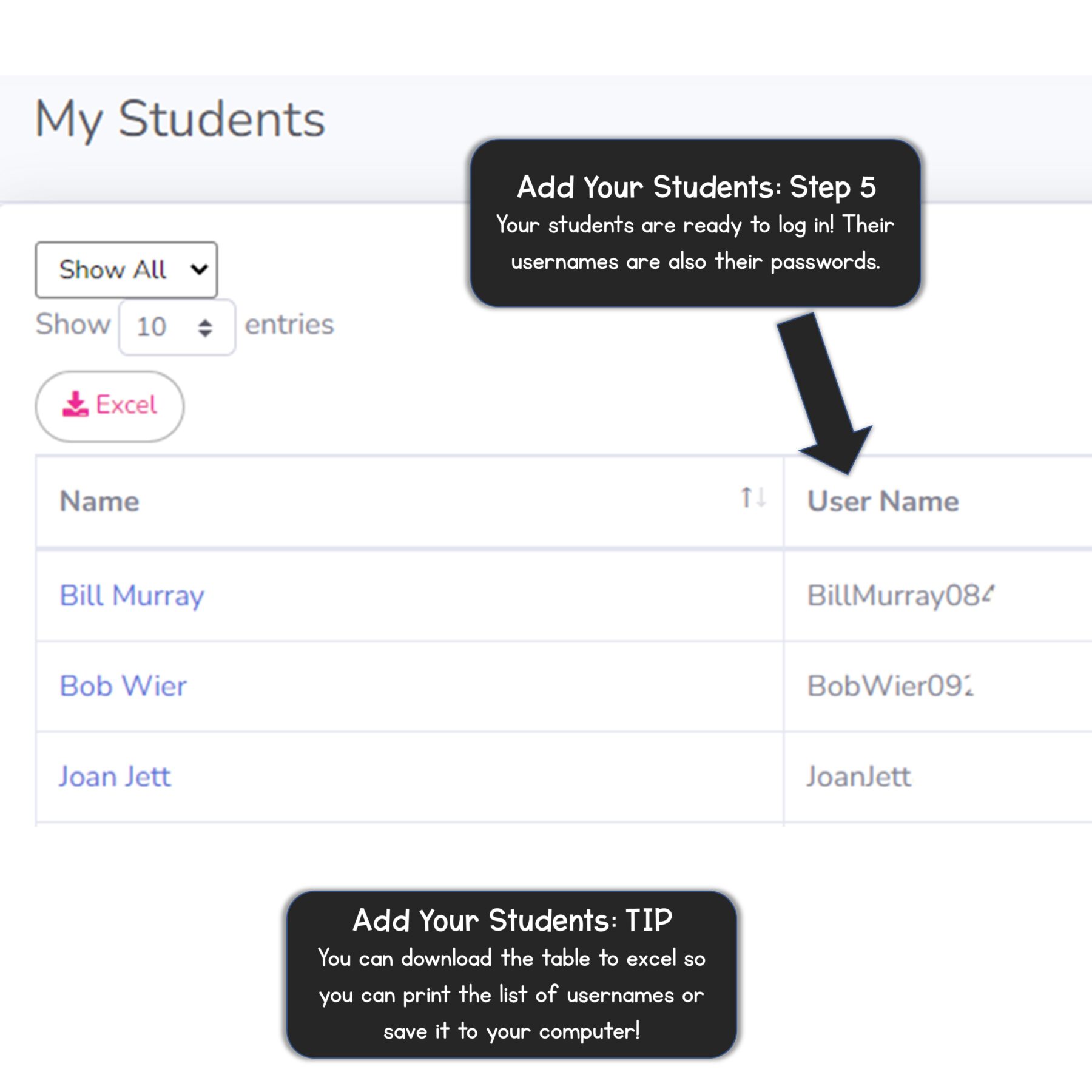
Once you add a student, her name will appear in your student list.

Click on View under Credentials to see the student’s username, password, and login QR code. 

Students can log in with either a username and password or the QR code.

Student Access

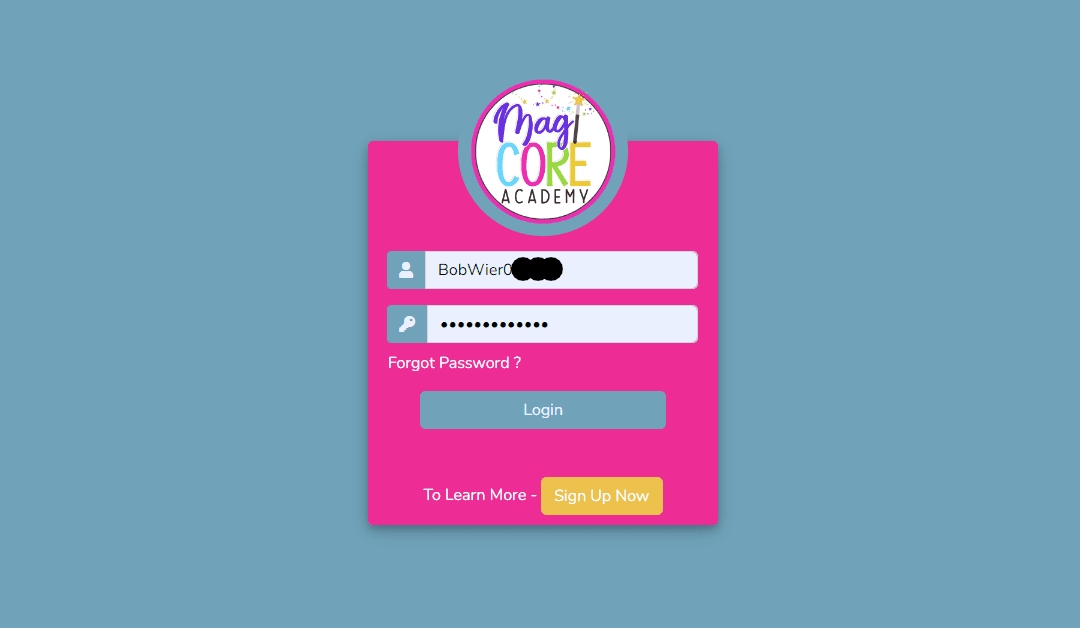
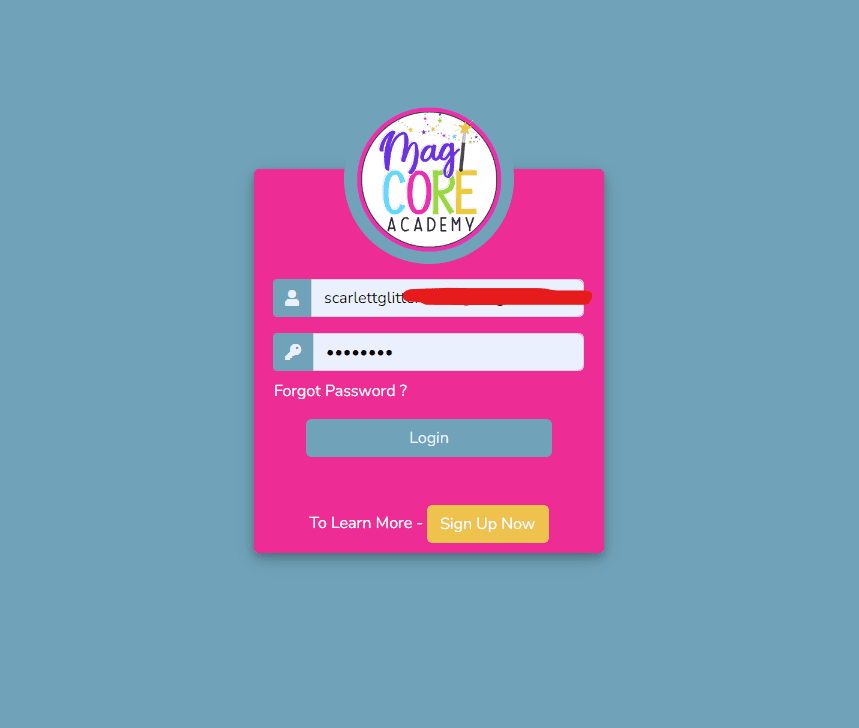
Students can access their accounts at magicoreacademy.com/login, the same login page that you use to access your teacher account.

Students will need to click “I’m a Student” and enter their username and password. They can also sign in with Clever or their QR Code.

your student list

Managing Your Class List

The first step to using MagiCore Academy is adding your students and managing your student list. We've made this part SUPER easy. Here is a walkthrough showing the different features for adding and managing students.

Click the images to enlarge the thumbnails.

Click the image to enlarge.

Manually Adding Students

You can add your students one at a time using the Add Student button on the top right of the My Students page. To access the My Students page, click on Students on the left side bar menu.

Student Usernames and Passwords

Student usernames and passwords are automatically generated using the student's first name, last name, and a random number. By default, the username and password are the same.

Teachers & parents can edit the username and password; however, personalized entries must comply with our data security policies. If your suggested username or password violates these policies, you will receive an error message and will need to add the student again.

Click the image to enlarge.

Click the image to enlarge.

Signing Up & Importing Class Lists with Clever

You can log in via your Clever account. If your are already registered on MagiCore Academy, your account will be associated with your account on Clever after the first login providing you used the email associated with your Clever account. If you don't have an Academy account, a new account will be created.

Once your accounts are connected, click the "students" option from the user menu. You will see your students listed. You can import your students one by one or all of them at once. You cannot import more students than your Academy plan limit.

Creating & Using Classes in Academy

Classes can be used to help organize students by period, small groups, reading levels, and more.

To create a class, click on Students to navigate to your My Students page. Then click on the Classes tab on the top left side of the screen.

From this page, you can click Create Class to add a new class. Select any class and click Add or Remove Students to manage your class lists.

Click the image to enlarge.

Click the image to enlarge.

Editing & Removing Students

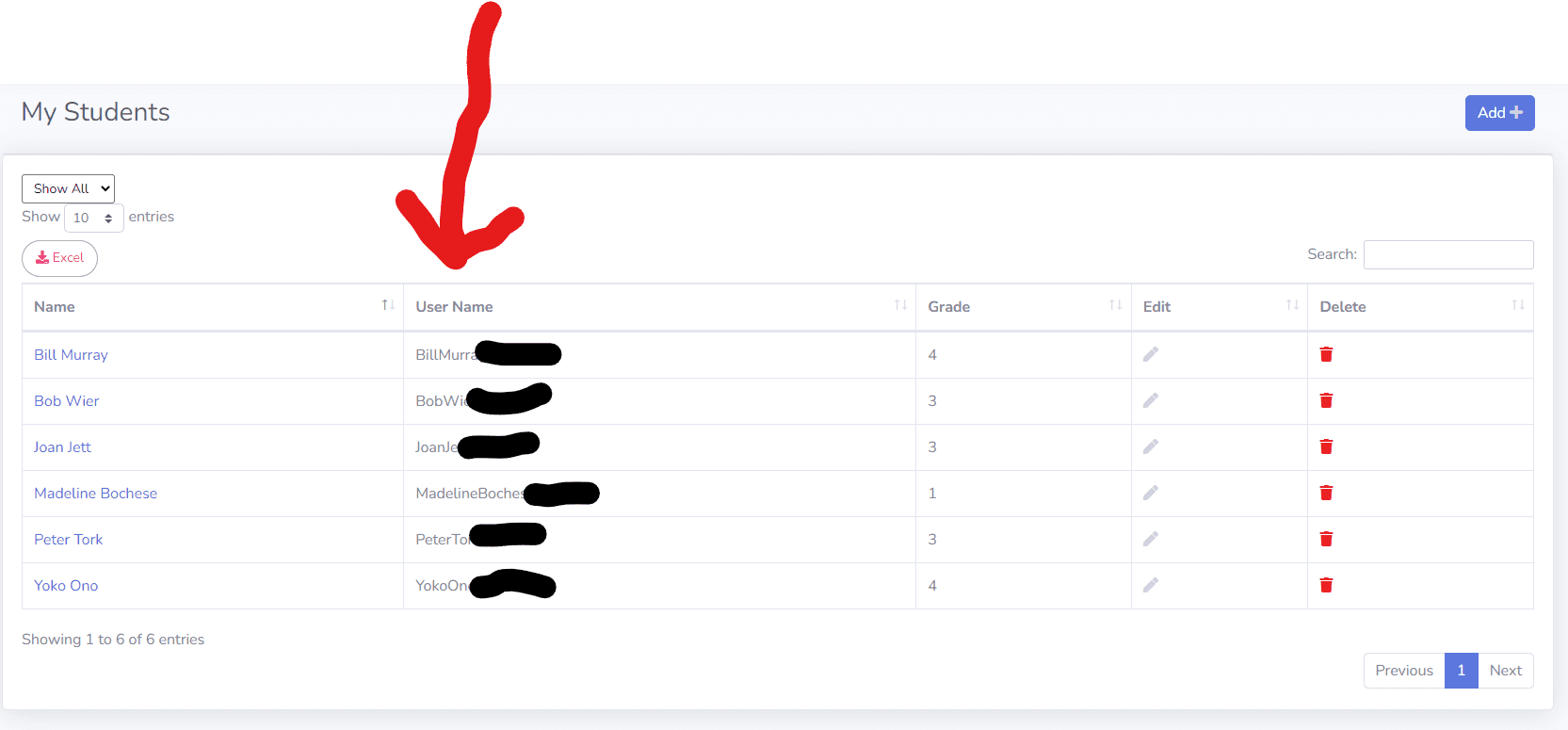
To edit or remove students, first click Students in the left sidebar menu to access your My Students page Each student has a pencil and trash can on the far right side of the list table.

Click the pencil to edit the student. Click the trash can to delete the student.

Deleting Students - Student Data Warning!

Deleting a student will also remove all of their assigned resources and responses, and this action cannot be undone!

Your Resources

Finding Resources

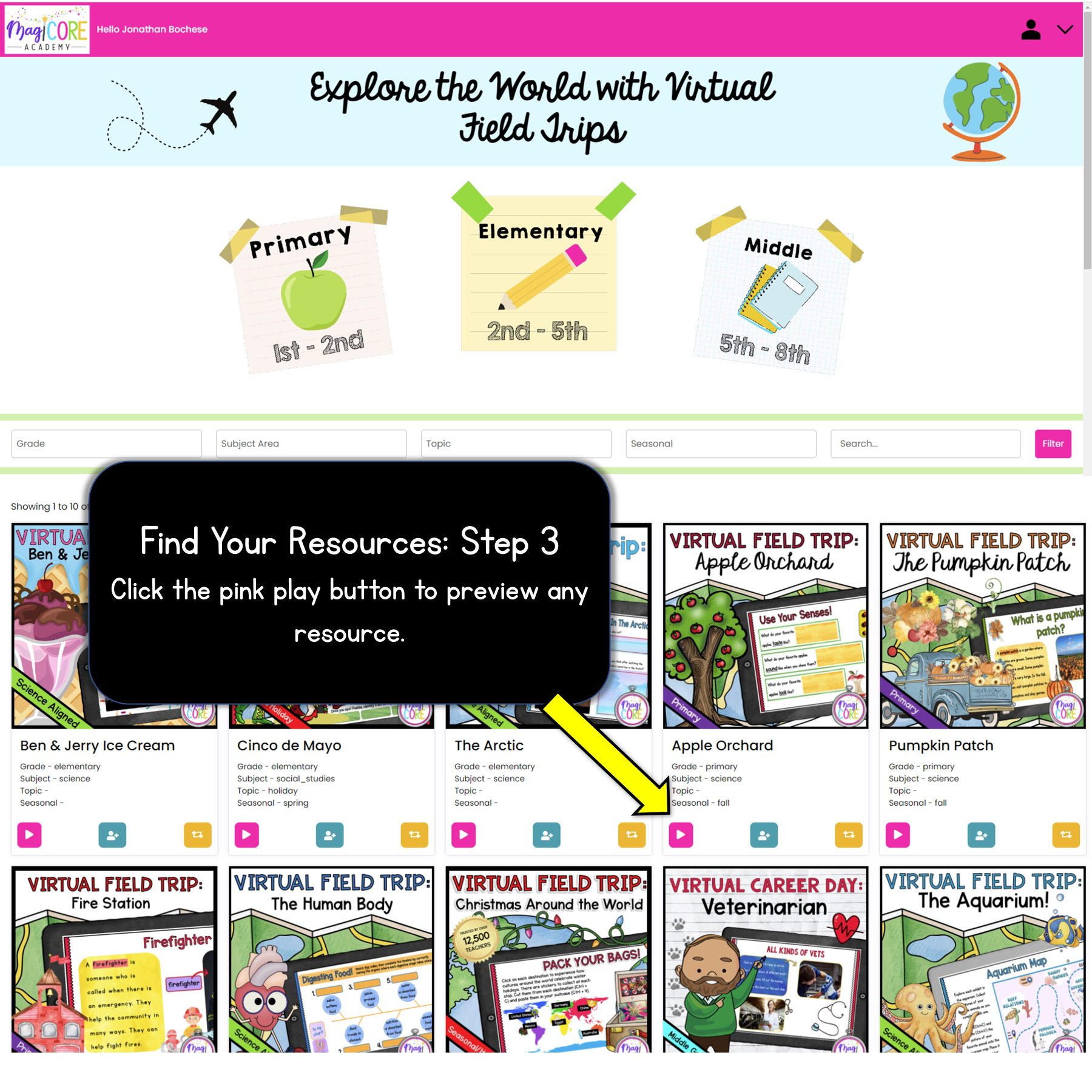
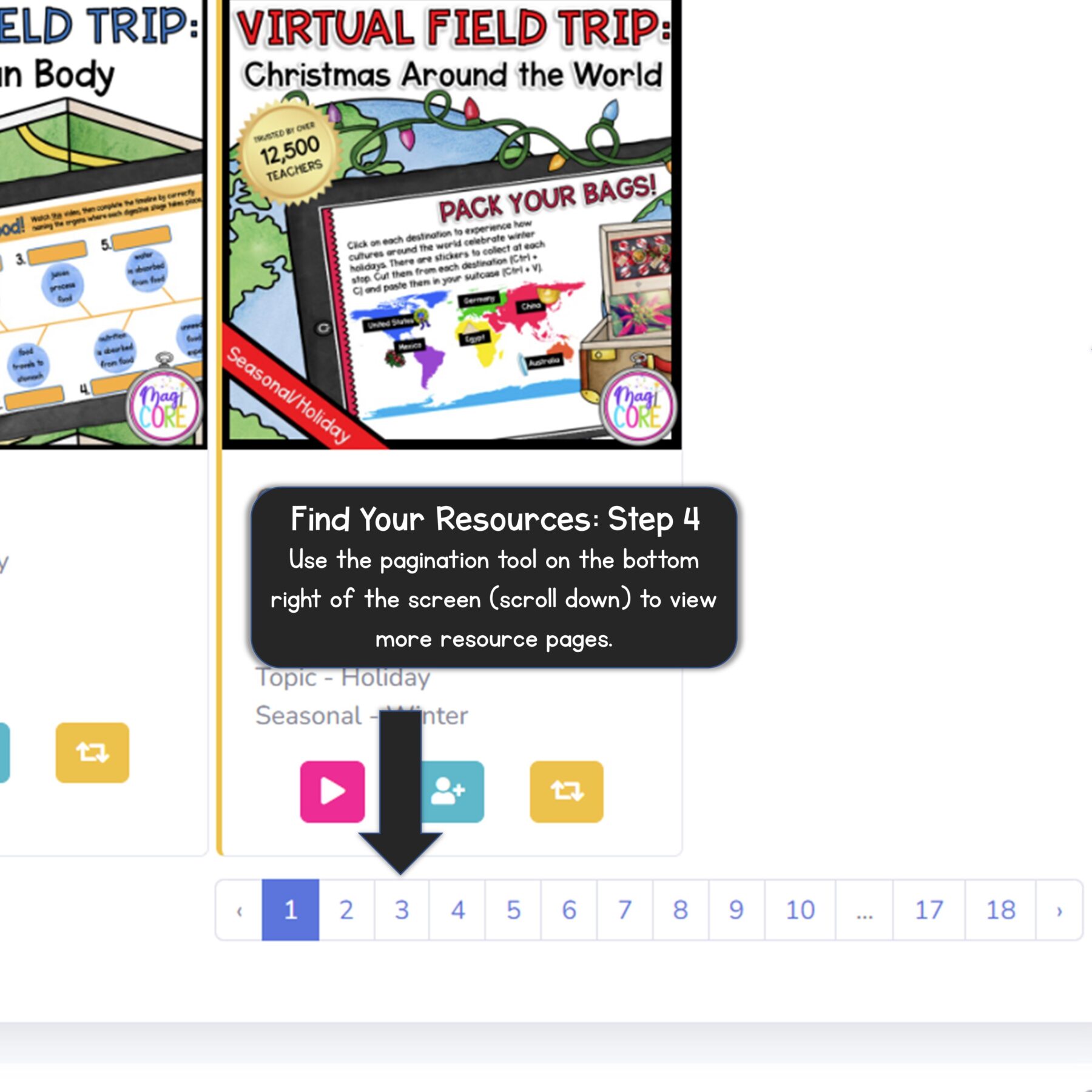
There are so many resources to explore. Here is a step by step walkthrough showing how to find and assign activities activities in Academy!

Method 1: View by Resource Type

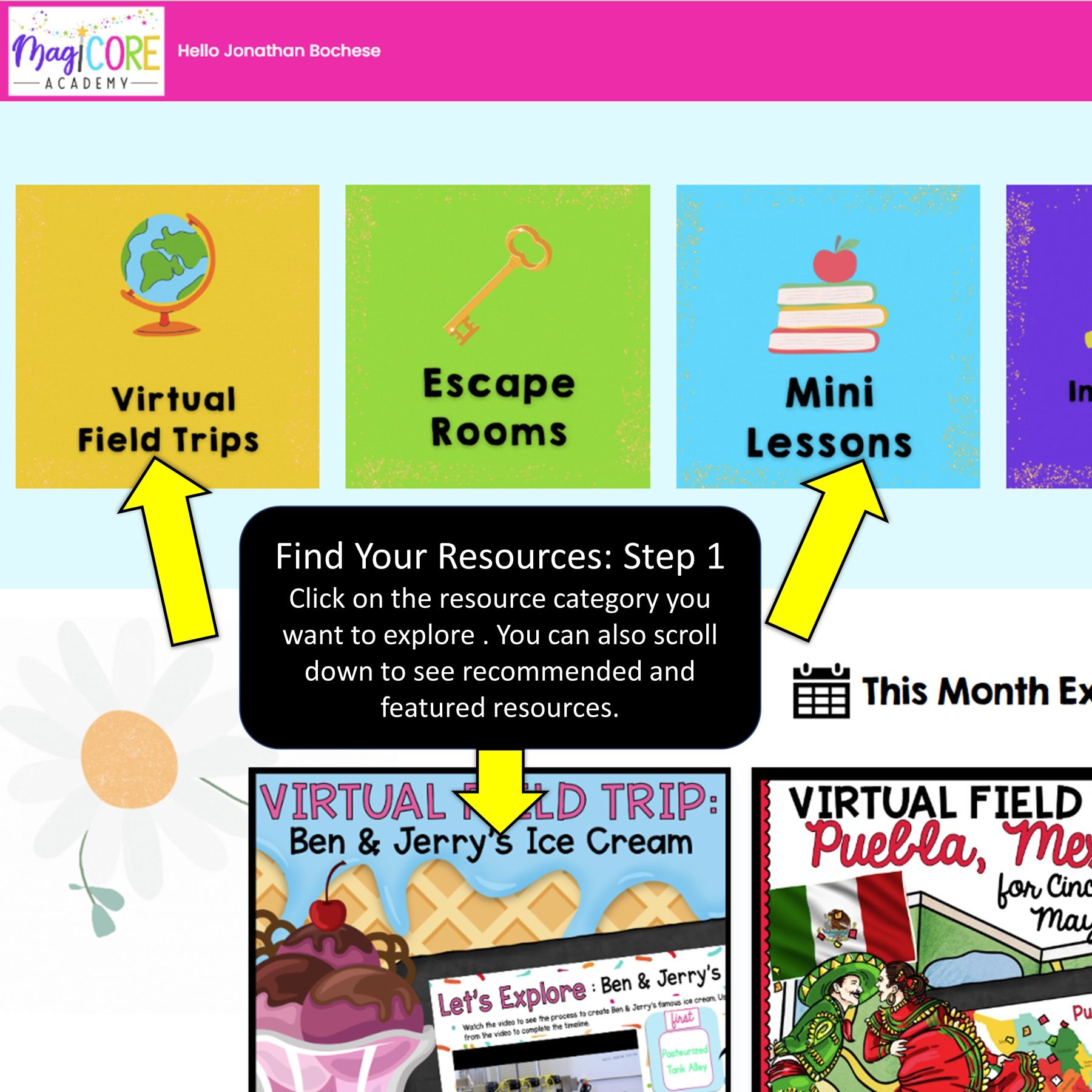
Academy offers a huge variety of learning activities. To make things easy, we classify all of our resources into five main resource types. You can see each resource type across the top of the home screen, and click on the resource category that best fits your needs. Once you select a resource type, you can use the filter options at the top of the screen to further narrow your browsing.

Resource Types

1. Virtual Field Trips: Interactive cross-curricular lessons about a specific person, place, time, or concept.
2. Escape Rooms: Skill focused activities that incorporate themed challenges, mysteries, or puzzles.
3. Mini-Lessons: Skill focused lessons and activities covering core skills and specific topics.
4. Interactive Reading: Reading comprehension activities like our Interactive Readers and Choose Your Own Journey series.
5. Review Games: Fun activities, task cards, flash cards, and games that foster engagement and meaningful learning.

Method 2: Explore by Categories

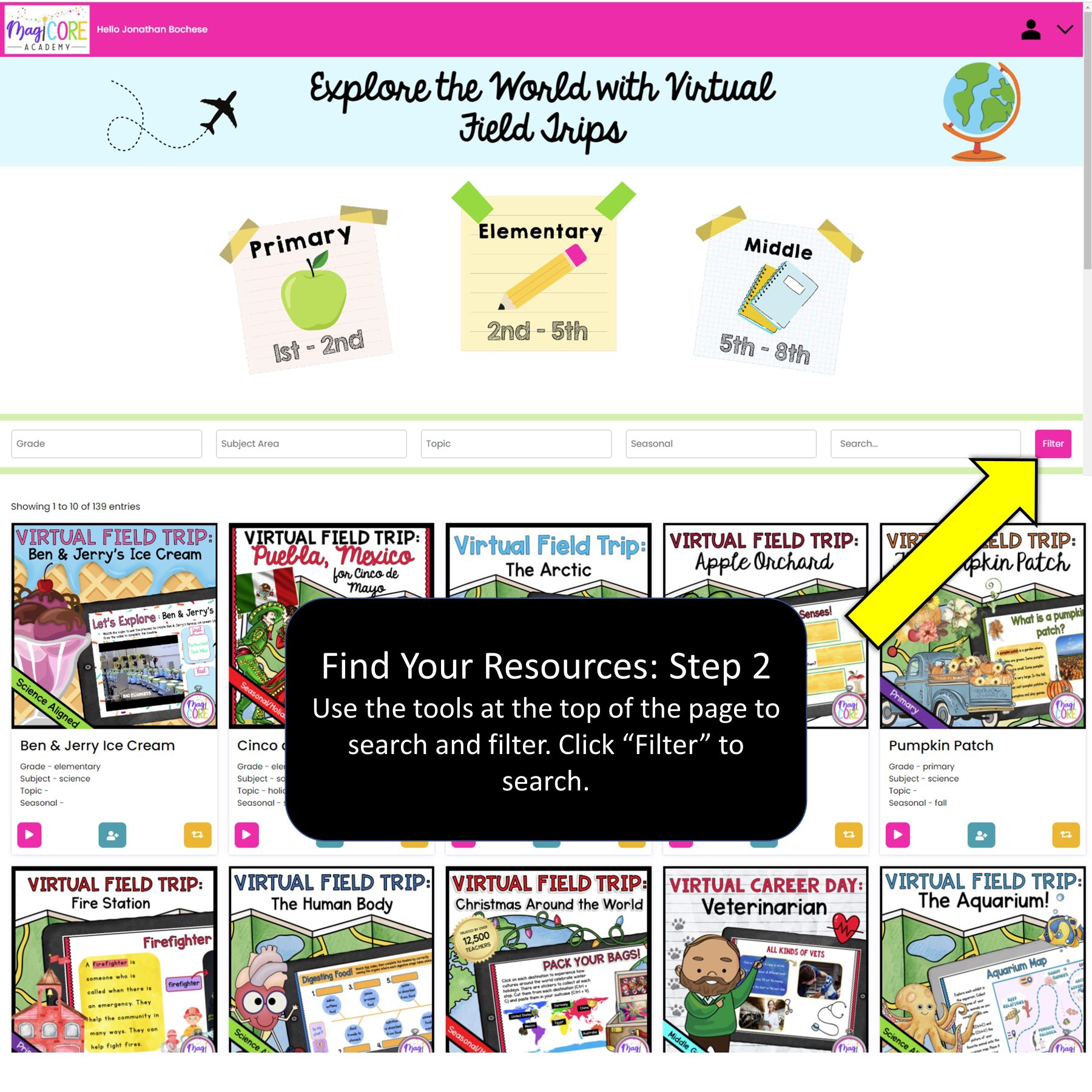
Click the Explore by Categories button to open the search and filter tool. You can narrow down the available activities by grade, subject, skill, text type, Lexile level, season, and more.

Explore by Categories: TIP

The number of applicable resources will show on the pink circle on the right side of the search and filter tool. Click the circle to apply the search and filter selections and view the applicable resources.

Click the image to enlarge.

Click the image to enlarge.

Method 3: Search Bar

This is the fastest method for finding an activity. Click on the white Search Resources bar on the top right side of the screen and enter a search term. As you type, you will see relevant tags and activity titles pop up below the search. Click on a #tag to see tagged activities, or click on a any title to go directly to that activity's resource page.

FREE TIER

Accessing Your Freebie Resources

If you signed up for Academy Free Tier, here is how to get the most out of your current access.

Finding Your Freebie Resources

If you do not have a paid subscription and are using our Free Tier service, you will only have access to a portion of our activities but you will be able to see our entire resource library. We arranged our Free Tier activity listings to make it easy for you to find the resources that you can access. 

To see your Free Tier activities, click on each resource type across the top of the home screen. The Free Tier resources will be listed at the top of the activity menu and will be separated from the rest of the menu by a double line and text.

What's Available in Academy Free Tier?

The available content in Academy Free Tier may change from time to time; however, you will have access to a few sample products from most of the product categories. 

The products available to Academy Free Tier users will always show up first when you click on the category – so you don’t have to dig for them or scroll through the paid resources to find them.

If you've signed up for Free Tier access, you will be limited to access only a few resources. This will allow you to sample the resources in Academy, explore the platform, and decide whether it is right for you. Keep in mind that the resources in Free Tier are only a small portion of what you get when you sign up for Academy or Academy All-Access. You can upgrade to a TEN DAY FREE TRIAL to check out everything Academy has to offer at any time!

Student Assignments

How To Assign Activities to Students

With MagiCore Academy, you're always in control of what activities your students are working on. Here is how to assign and unassign activities.

Click the images to enlarge the thumbnails.

Click the image to enlarge.

Quick Assign from List

Find the activity you would like to assign and hover over the white portion near the title below the cover image. A menu will open. Click "View" to open the resource page and learn more about the resource. Click "Assign" to open the Resource Assignment Screen.

Assign from Resource Page

The resource page provides information about the activity. You can view the resource, view resource data, and assign the resource from this screen. Clicking "Assign Resource" will open the Resource Assignment Screen.

Click the image to enlarge.

Click the image to enlarge.

Assigning Activities on the Resource Assignment Screen

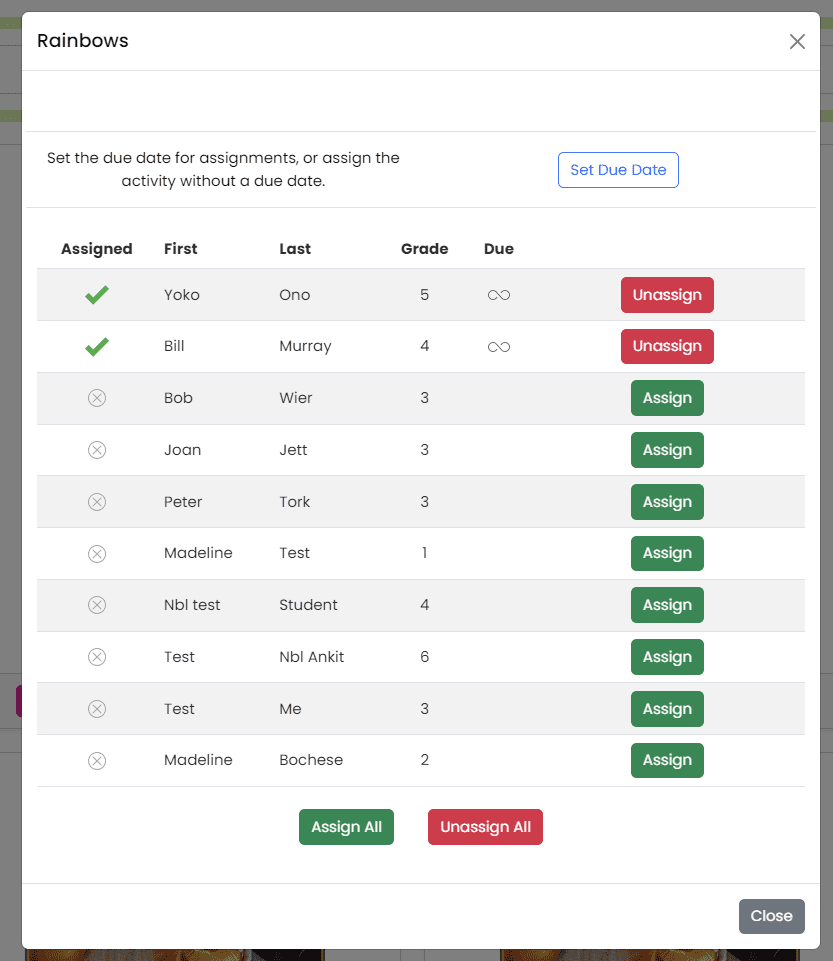
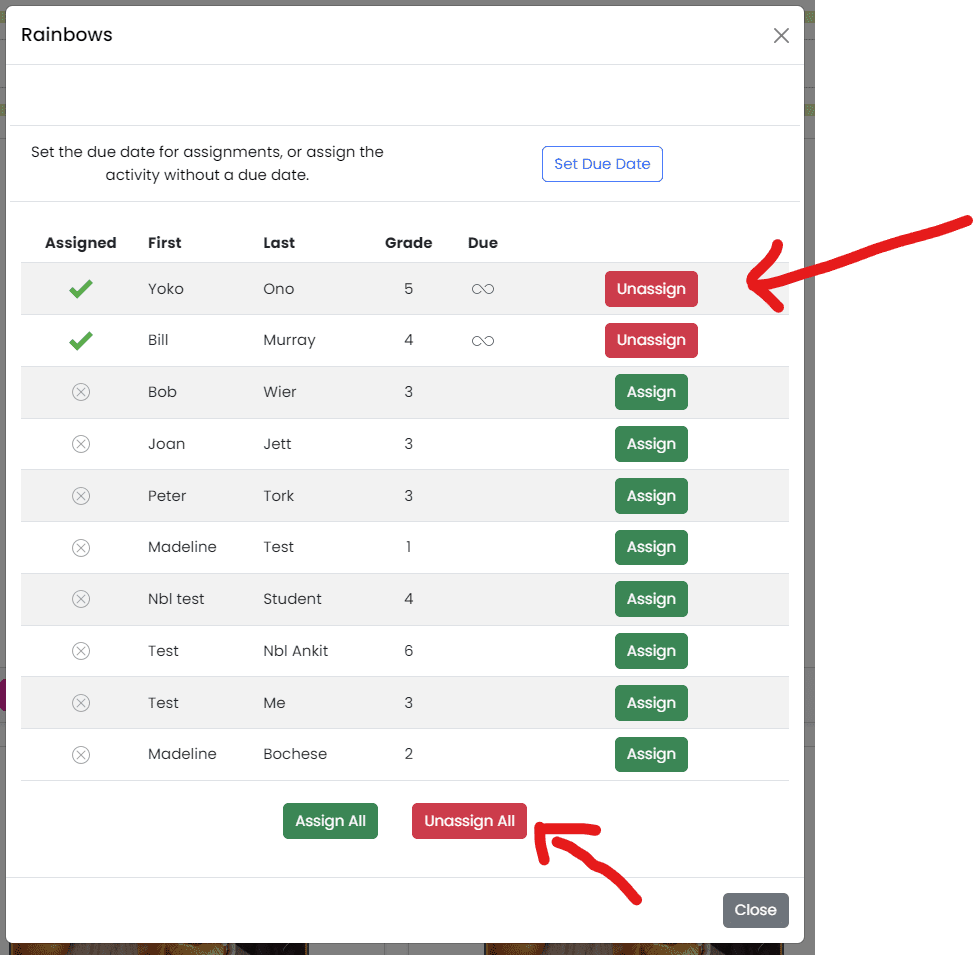
The Resource Assignment Screen lists all of your students. To assign the activity to your students, simply click "Assign" to the right of each student's name. You can assign to one, many, all, or none of your students. When you assign an activity, the Assign button will turn green and the Assigned Date will populate in the table.

Setting a Due Date

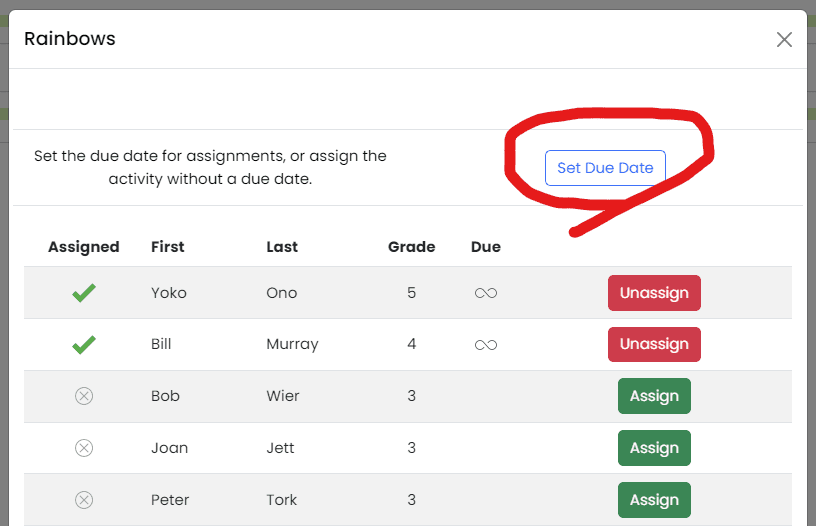
You can set a due date by clicking on the purple Set Due Date button on the top right of the Resource Assignment Screen. Once a due date is populated, click Assign. The activity will be assigned with a due date, and the due date will populate in the table.

To change a due date, unassign the resource by clicking the green Assigned button. Then set the due date using the purple "Set Due Date" button, and click Assign.

Unassigning an Activity

You can also click "Unassign All" on the bottom of the window to remove it from all of your students' activity lists.

Click the image to enlarge.

Click the image to enlarge.

Assigning to a Class

If you set up one or more classes in your student list, you can assign activities to every student in the class all at one time. To do this, click on Assign to Class in the top left of the Resource Assignment Screen and select which class you want to assign. If you want to set a due date, simply add the due date using the purple "Set Due Date" button prior to using the Assign to Class dropdown.

Unassigning an Activity

Click on the green Assigned button next to any student to unassign an activity.

You cannot unassign an activity once it has been completed; however, you can archive the activity to remove it from the student's activity listing.

Click the image to enlarge.

Student Access

How Students Access Activities

Now it's time for your students to use the resources you assigned. Here is a step by step walkthrough showing how to do it.

Click the images to enlarge the thumbnails.

Click the image to enlarge.

Student Access: Logging In

Students use the same login page as teachers - https://magicoreacademy.com/login.

Students login using their username and password. They can also use a QR code or log in using Clever.

If you student is having trouble logging in, make sure the "I'm a Student" button is selected.

Student Access: My Assignments

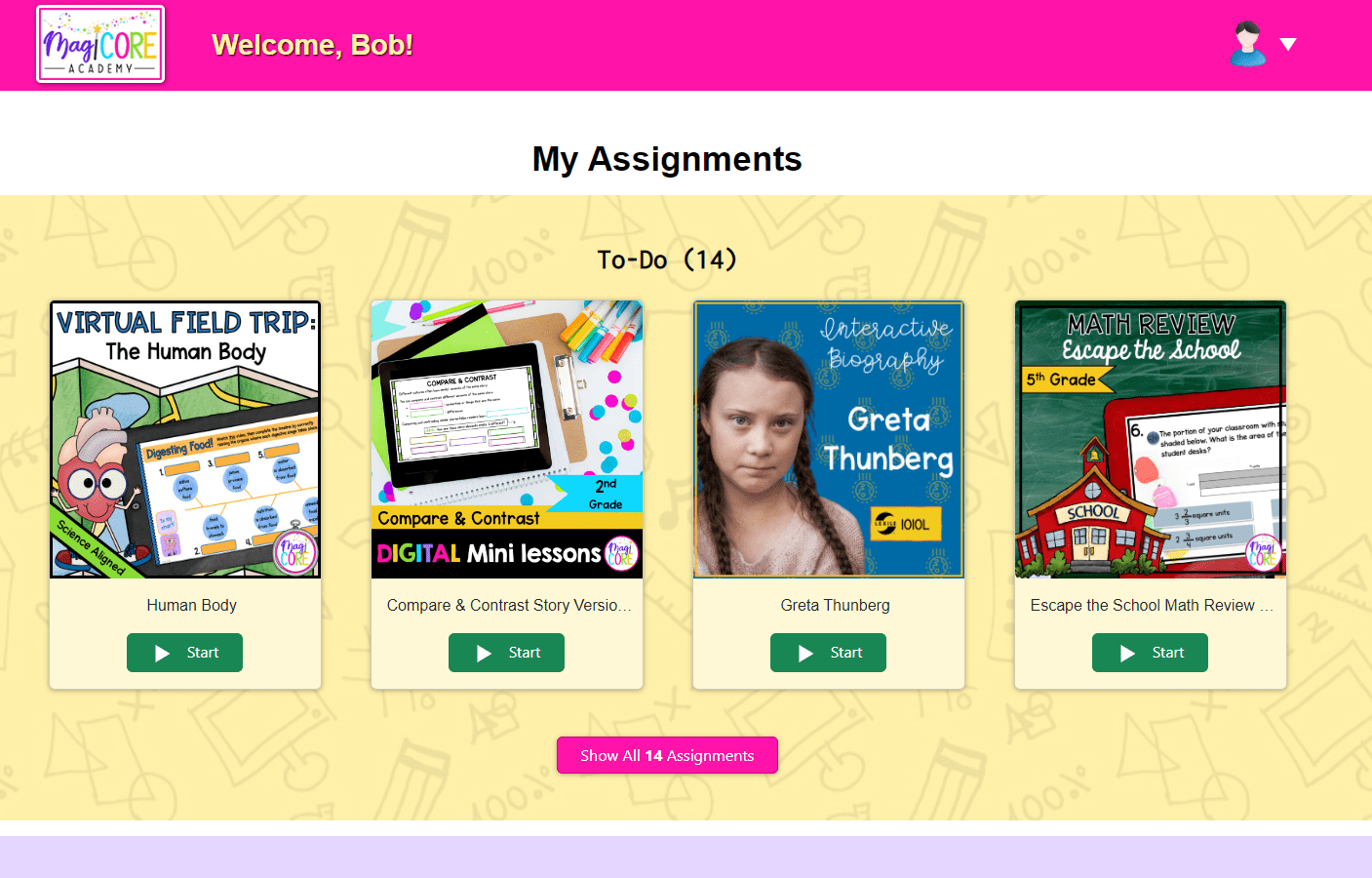
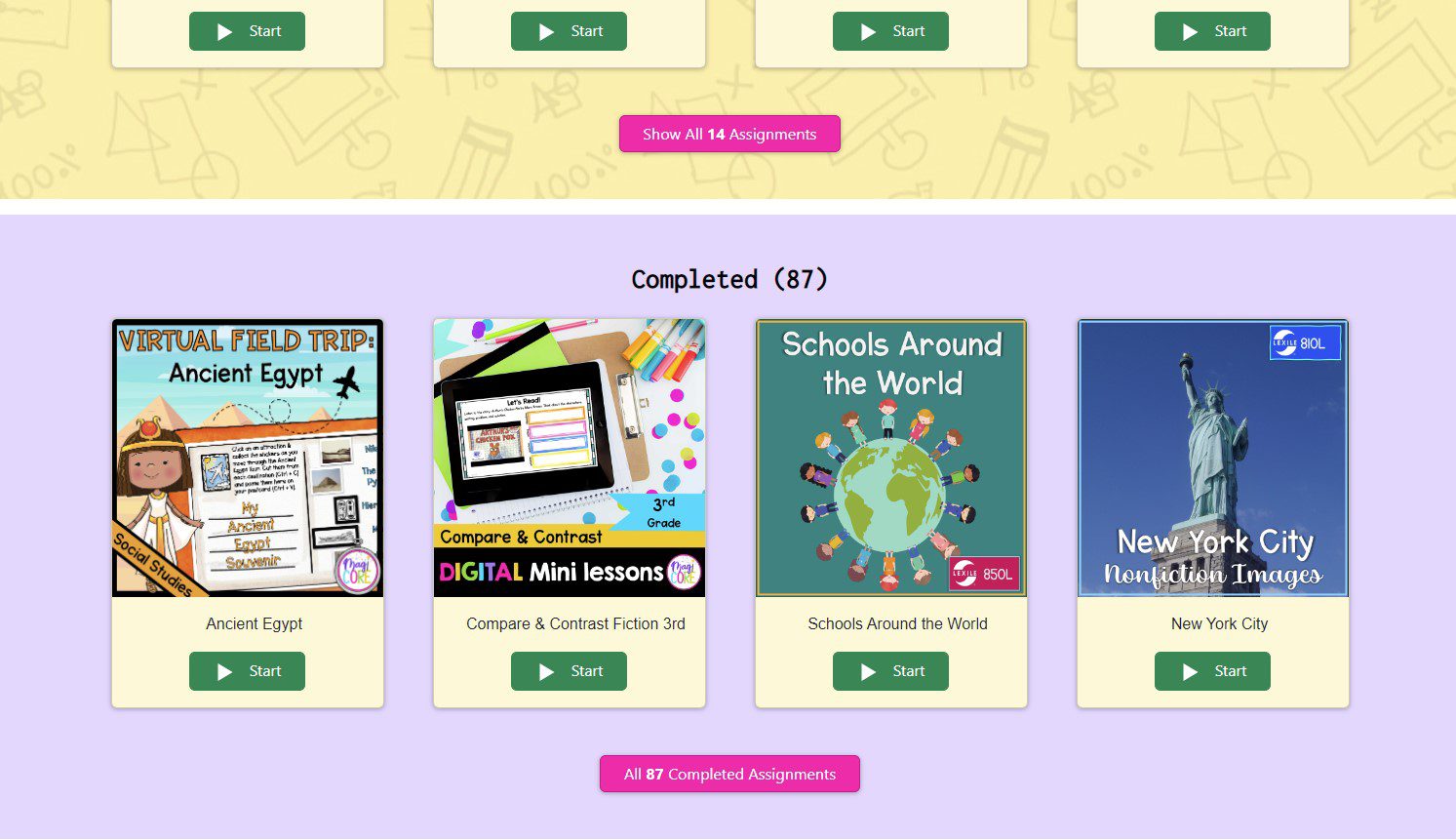
When they log in, your students will see their My Assignments page. The page will default to "All Assignments". Activities in progress are shown first, followed by activities that have not been started. On the bottom of the list, they will see their completed activities.

Students can click on the tabs across the top of their My Assignments screen to filter their assignments by in progress, to-do, and completed.

Click the image to enlarge.

Click the image to enlarge.

Start and Resume Activity

To access each activity, students click the "Start" or "Resume" button below each activity. It will open in a new window for them to complete.

Student Access: TIP

Students will continue have access to the activities they complete until they are unassigned in the teacher account. You can archive them or keep them assigned for your students to continue to enjoy!

your student data

Access & Review Student Answers

MagiCore Academy collects student answers and completion data on nearly all of our resources, making it easy for teachers to review completion, check answers, and even correct responses.

Click the images to enlarge the thumbnails.

Click the image to enlarge.

Recording Student Answers

Student answers are collected on activities marked "This Activity Tracks All Student Data." Completion confirmation is provided for activities marked "This Activity Tracks Student Completion Only." A small portion of the activities do not collect and save student answers. These are mostly games intended to be completed over and over for fun practice, and are marked accordingly.

Please check whether an activity reports student answers prior to assigning a resource.

Finding Resource Data

To view resource data including student answers, click "Data" on the left sidebar menu. This will open your Assigned Resource Data Overview screen.

The data screen defaults to viewing data by resource; however, you can also view by student by clicking on the "By Students" tab on the top of the Data screen.

Click the image to enlarge.

Click the image to enlarge.

Data & Responses By Resources

Data By Resource allows you to see student responses for each assigned resource.

With the By Resources tab highlighted, you can see all of the resources you have actively assigned to your students. Click the View Data button to open the Resource Data Responses screen. Under "View Responses", select a student from the dropdown. The students answers will show along with recommended responses/answer key and an assess option to mark the responses correct or incorrect.

Data & Responses By Students

Data By Students allows you to see student responses for each student in your class.

Click to highlight the By Students tab on the top of your Assigned Resources Data Overview page. Click on the left side of the row near the student's name to open the Student Data page. Filter the activities by status on the left hand side or by activity type using the tabs across the top of the screen. Click View Responses to open a right sidebar with the student's responses.

Click the image to enlarge.

How to Change my plan

Upgrading, Changing, & Canceling is Easy!

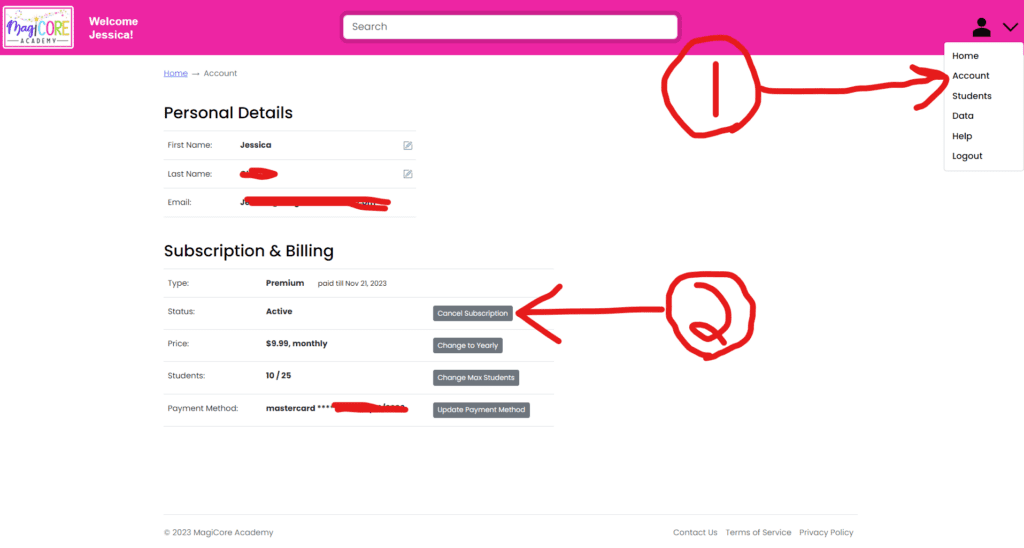
To change or cancel your subscription, simply log into your account and click on the user icon in the top right-hand corner of the screen. Then click “Subscription and Billing”. From here, you can manage your account, cancel, download invoices, or change your payment method. 

If you have questions about your account or cannot change or cancel in the platform, please contact us.

Missed payments

Defaulted Subscription Payments

If we’re unable to process your payment or your card is declined, your All-Access subscription will be temporarily suspended and downgraded to our Free Tier. A notice will appear at the bottom of the Subscription & Billing page.

We will automatically retry your payment several times. If a retry is successful, your All-Access subscription and full access will be automatically reinstated. If all retry attempts are unsuccessful, we will stop further attempts, cancel the All-Access subscription, and your account will remain on the Free Tier.

To resolve a failed payment manually, scroll to the bottom of the Subscription & Billing section and select Retry Payment. You may need to update your payment method first. To stop further attempts, you may select Cancel Subscription at any time.

we're here to help

Frequently Asked Questions

Enjoy 10 days of unlimited access to everything Academy has to offer. Monthly and annual subscribers get access for the first ten days for free. We’ll charge your credit card on file beginning on Day 11. If you cancel before your trial expires, you will not be charged.

Enjoy 10 days of unlimited access to everything Academy has to offer. Monthly and annual subscribers get access for the first ten days for free. We’ll charge your credit card on file beginning on Day 11. If you cancel before your trial expires, you will not be charged.

MagiCore Academy has digital resources for primary, elementary, and middle school. There is more elementary content than primary and middle, but since you’ll have access to all the digital resources, you can use resources that are on, above, and below grade level to meet your students’ needs. We offer a 10-day free trial so you can see if the content fits your specific needs.
No, they’re totally digital. This allows us to use interactive multimedia elements we wouldn’t be able to create on paper.

The license is for one teacher in one classroom or one household (homeschool parents). Our base plan includes up to 25 student seats; however, we have packages available for up to 100 students. For privacy reasons, students may not share student seats/accounts; however, you can create student accounts for small groups or whole class exercised providing they are being used within the Terms of Service. Academy may not be used for commercial purposes (e.g. tutoring center) unless express permission is provided. If you are interested in using Academy for your school or business, please CLICK HERE. 

You’ll be able to see student text answers, multiple choice results, and completion certificates (depending on resource type) in your teacher dashboard right inside the MagiCore Academy platform. You’ll be able to manage student data inside the platform, too.

You can cancel a paid subscription anytime. Users who cancel paid subscriptions will continue to have access until the end of the paid period. We do not refund or prorate canceled subscriptions. Once the paid subscription term has expired, your account will be downgraded to “Academy Free Tier,” which will give you limited access to our content. You can still access and manage your account, and you can upgrade again anytime if you change your mind. Accounts that remain inactive for over 18 months are deleted per our Customer Retention & Account Deletion Policy.

We take student privacy very seriously. We only collect student information that is necessary to provide the service, which is limited to student names, grade level, and answers to activities. Student names are requested solely for the teacher’s convenience. Teachers/Parents may further protect student privacy by entering initials or an alias for each student. We do not sell student information. Student answers are kept on file only at the teacher’s discretion and may be deleted permanently by teacher users at any time. Please see our Terms of Service and Privacy Policy for more information. 

All account communication happens through email — including password resets, welcome messages, and support replies. If you’re not receiving our emails, they are likely getting filtered or blocked. School and district email systems can block our messages without you even knowing. Check your Spam or Promotions folder, and be sure to add info@magicoreacademy.com to your Safe Sender list.

Still Have Questions?

We’re always working to improve MagiCore Academy. If you have any questions regarding your account, functionality, or have a suggestion, we’d love to hear from you. 

Contact us using any of the methods below!

*Please ensure you add @magicoreacademy.com to your safe sender list. If you do not receive a reply, it’s likely our emails are blocked by your email settings or school/district email security software.

0